Option 1: Verify the SSH service on Azure VM
- Go to the Azure portal and navigate to your VM’s settings.
- Ensure that the SSH service is enabled for your VM. You can check this under the Networking section or the Management section.
- Make sure that the SSH port (default: 22) is open in the network security group (NSG) associated with VM.
Option 2: Try resetting the SSH configuration in the portal (I’m using the Ubuntu server)
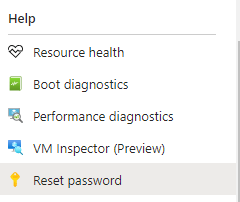
- Select Virtual Machine
- Select Reset Password option from the side menu
- Select Reset Configuration Only
- Go to Azure Portal
- Select Update
Option 3: Using Serial Console – It might be possible that firewall restrict the port 22

- Go to Serial Console
- Enter your SSH username and password to login into the server
- Check the firewall status to see if port 22 is allowed – sudo ufw status verbose
- If the rule is not there then add it using sudo ufw allow ssh
Happy Programming!!
Leave a Reply